
Smart Attendance Overview
Learn how HRism captures accurate work hours with one-tap check-in, live timers, and WFH/WFO modes.
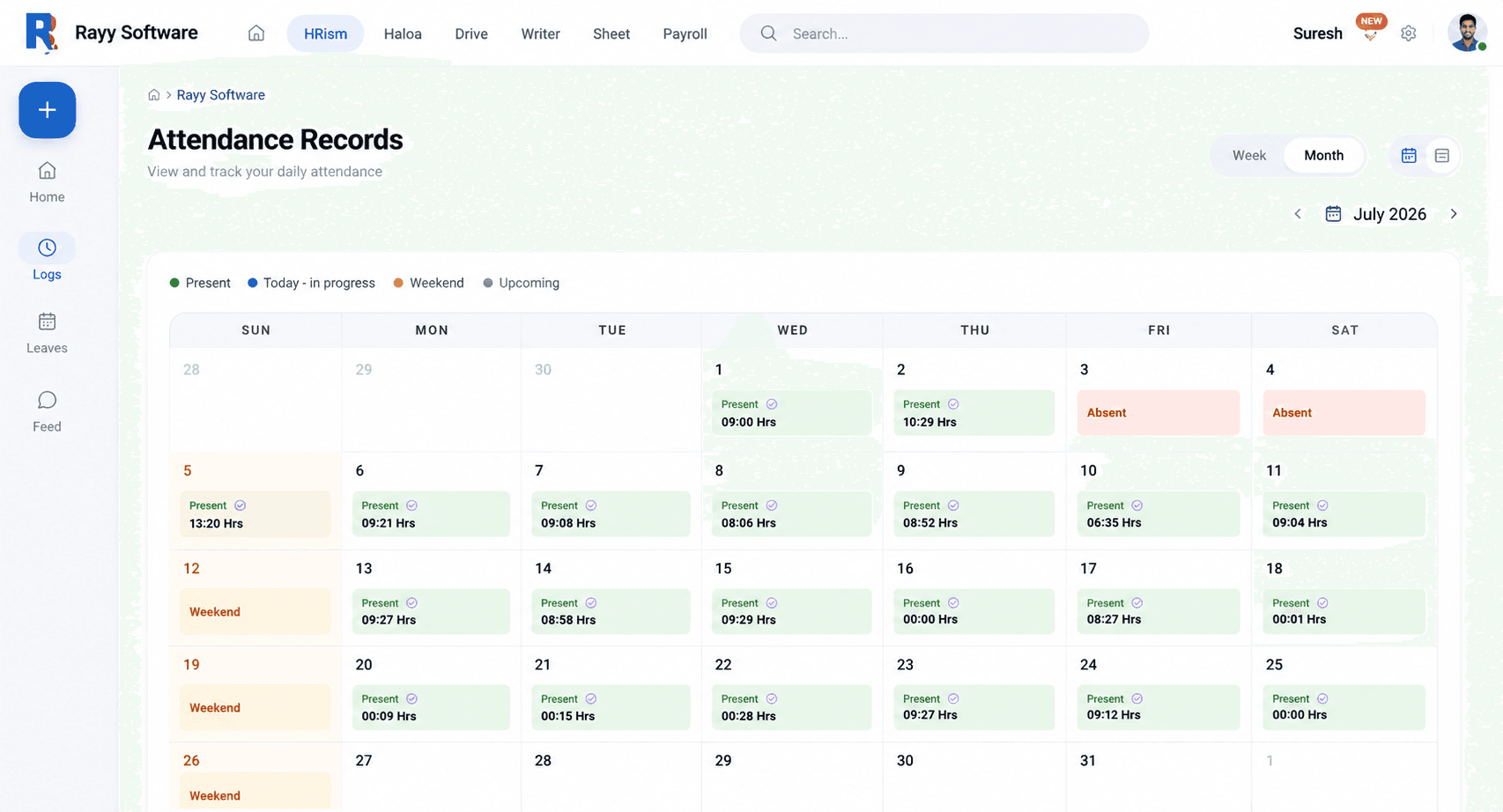
Overview
Smart Attendance eliminates manual logbooks and cumbersome time-tracking software. With single-click check-ins, real-time timer tracking, and location awareness, attendance logging is transparent, accurate, and painless for both employees and managers.
Watch & Learn
Smart Attendance Video Tutorial
Watch how to check in, track live shift timers, and manage attendance modes in HRism.
How It Works
When an employee initiates check-in, HRism verifies the shift schedule, logs the timestamp, records the active mode (Work-From-Office or Work-From-Home), and tracks active elapsed time until check-out.
Open HRism
LaunchLaunch web portal or mobile app on your device.
Choose Work Mode
ModeSelect Work From Office (WFO) or Work From Home (WFH).
Tap Check In
StartConfirm location permissions and start active shift.
Live Shift Timer
ActiveSystem tracks active elapsed work hours continuously.
Tap Check Out
CompleteFinalize daily work log and compute shift duration.
Step-by-Step Instructions
Open Attendance Dashboard
Navigate to the Smart Attendance section from your dashboard or main sidebar.
Select Work Mode (WFO / WFH)
Toggle between Work From Office or Work From Home based on your daily schedule.
Grant Location Permission
Allow browser or mobile device location access when prompted.
Tap Check In
The live timer activates immediately, displaying active shift duration.
Tap Check Out at Shift End
Click Check Out when concluding work to save your verified daily hours.
Important Information
Geofence Compliance
Check-ins attempted outside designated office boundaries will trigger manager review flags if geofencing is enabled.
Persistent Timer
The active timer continues running safely in the background even if you close your browser tab or app.
Location Privacy
Location coordinates are captured exclusively during active check-in shifts.