
List Location Roster
Tabular overview of team locations, active check-in modes, and site compliance.
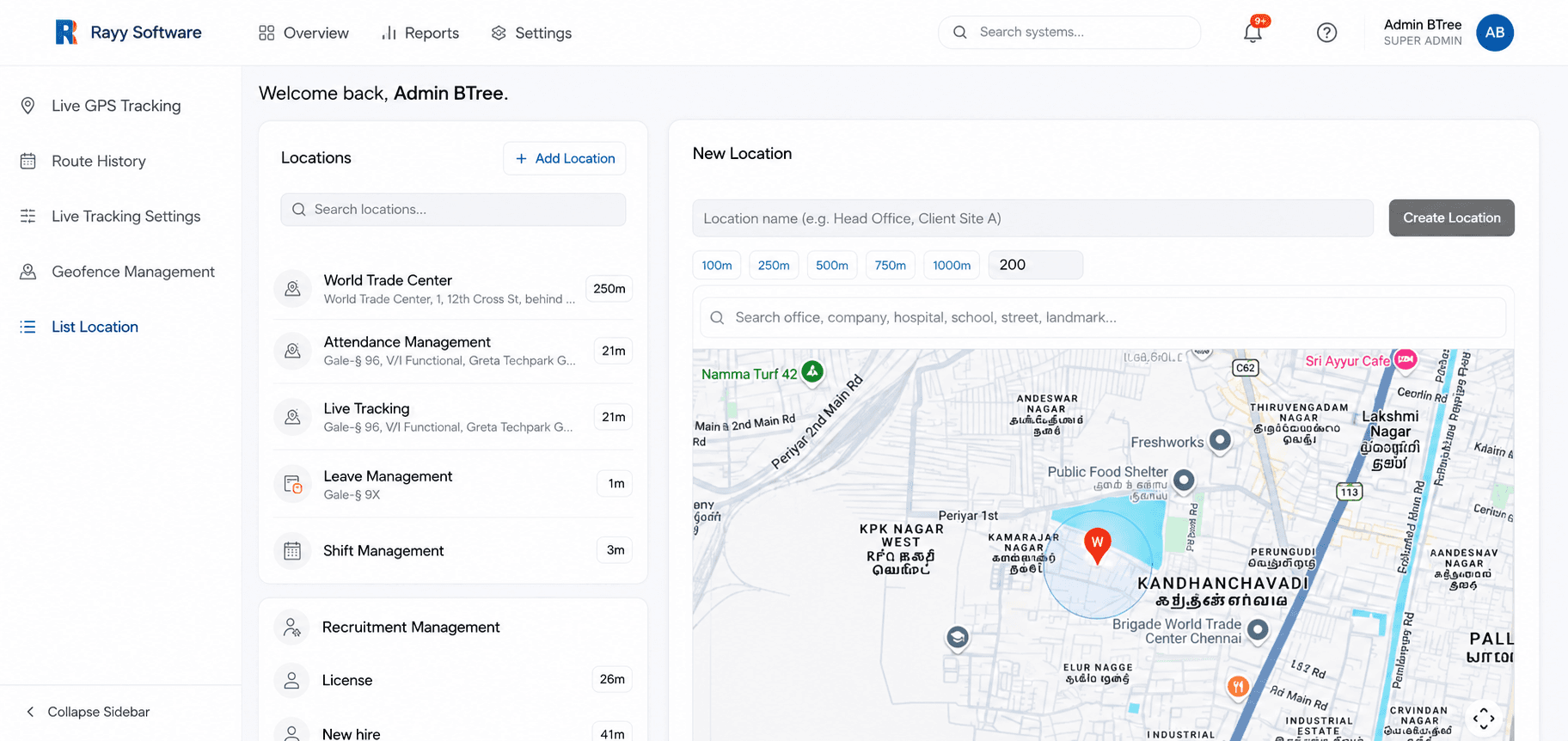
Overview
List Location presents a structured, tabular view of your organization's real-time team positions. Easily search, filter, and audit active staff by branch location, check-in mode, and last sync timestamp.
Watch & Learn
List Location Roster Video Tutorial
Watch how to inspect team location rosters, filter check-in modes, and audit location compliance in HRism.
How It Works
Rather than an interactive map, List Location organizes team telemetry data into an easy-to-scan table, ideal for quick headcount verification and branch compliance monitoring.
Open Location Console
OpenAccess List Location from GPS menu.
View Team Roster
ViewInspect full active employee list.
Filter Check-Ins
FilterFilter by Office, Field, or WFH mode.
Check Site Pin
InspectInspect current address and last sync time.
Verify Attendance
VerifyConfirm location compliance across teams.
Step-by-Step Instructions
Open List Location Screen
Select GPS & Location -> List Location from the side menu.
Filter by Department or Shift
Use the dropdown filters to scope the list to specific teams or office branches.
Search Employee Name
Use the quick search box to find any individual employee instantly.
Inspect Last Sync Timestamp
Review the 'Last Seen' timestamp to confirm telemetry freshness.
Click Pin for Map Preview
Click any location address cell to open a quick mini-map popover.
Important Information
Dynamic Sync
List Location updates dynamically without requiring manual page refreshes.
Permission Badges
Employees without location permissions granted will display an orange warning badge.