
How to Check Out
Ending your work shift, reviewing daily recorded hours, and finalizing attendance records.
Read time: 2 min read•Updated: 2026-09-02
Overview
When your workday concludes, checking out stops the active timer and logs your total hours for payroll and reporting accuracy.
Step-by-Step Instructions
Step 1
Step 1
Open Smart Attendance
Access the active timer widget on the dashboard or attendance page.
Step 2
Step 2
Click Check Out
Confirm the end-of-shift prompt. Total active time will be computed automatically.
Step 3
Step 3
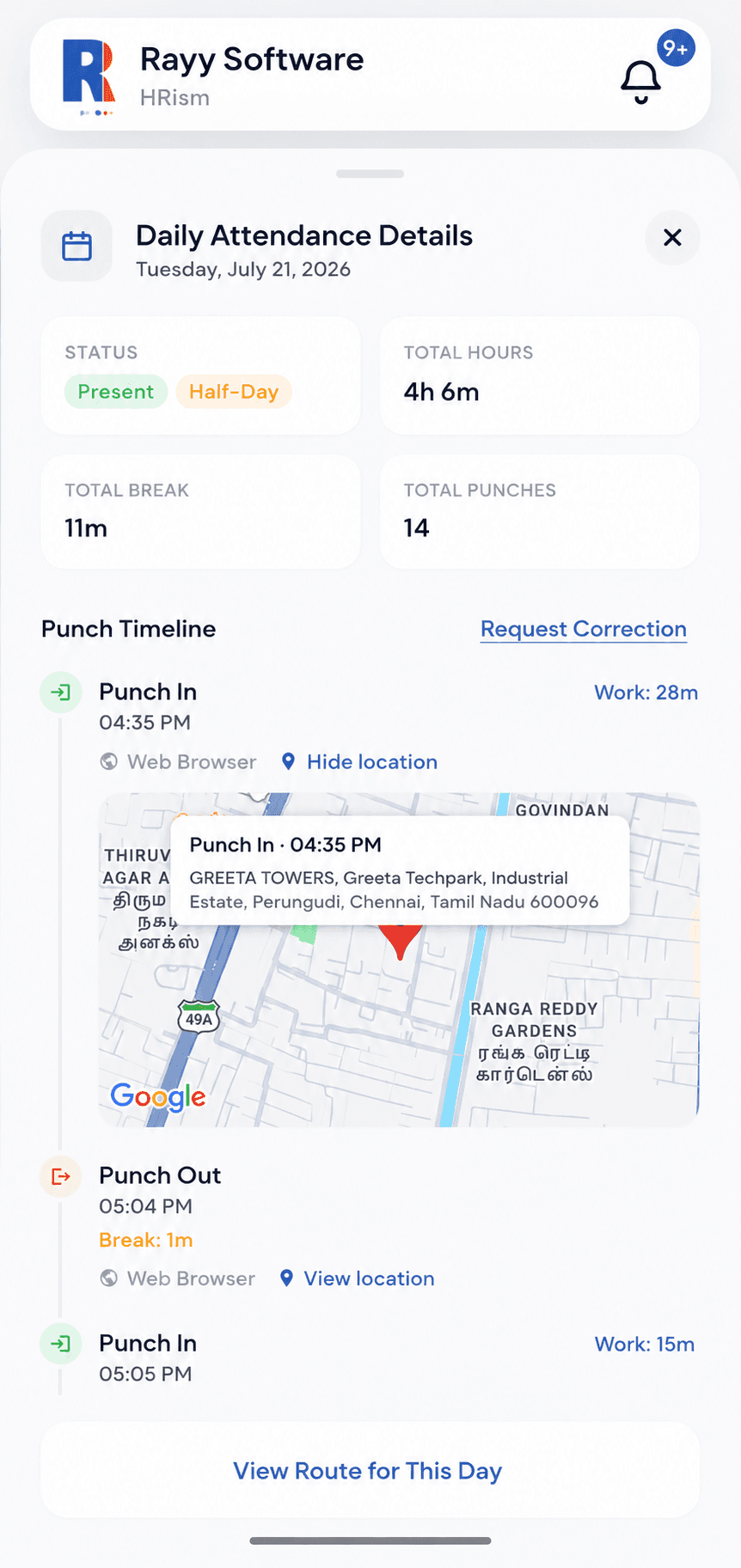
Review Daily Summary
Inspect total work duration, break durations, and shift completion status.
Frequently Asked Questions
If working a split shift or overtime session approved by HR, multiple check-in sessions will combine in your daily breakdown.